 Notion AI Hub Docs
Create Your First Agent
Build your first Notion Custom Agent from scratch and learn how to configure triggers, instructions, models, and tools.
Create Your First Agent
This guide walks you through creating a Notion Custom Agent from scratch, covering the four core configuration areas so you can get your first Agent up and running quickly.
Prerequisites
Custom Agent requires a Notion Business plan. If you are on the Free or Plus plan, you will need to upgrade to Business before the Agent creation option becomes available.
How to Create an Agent
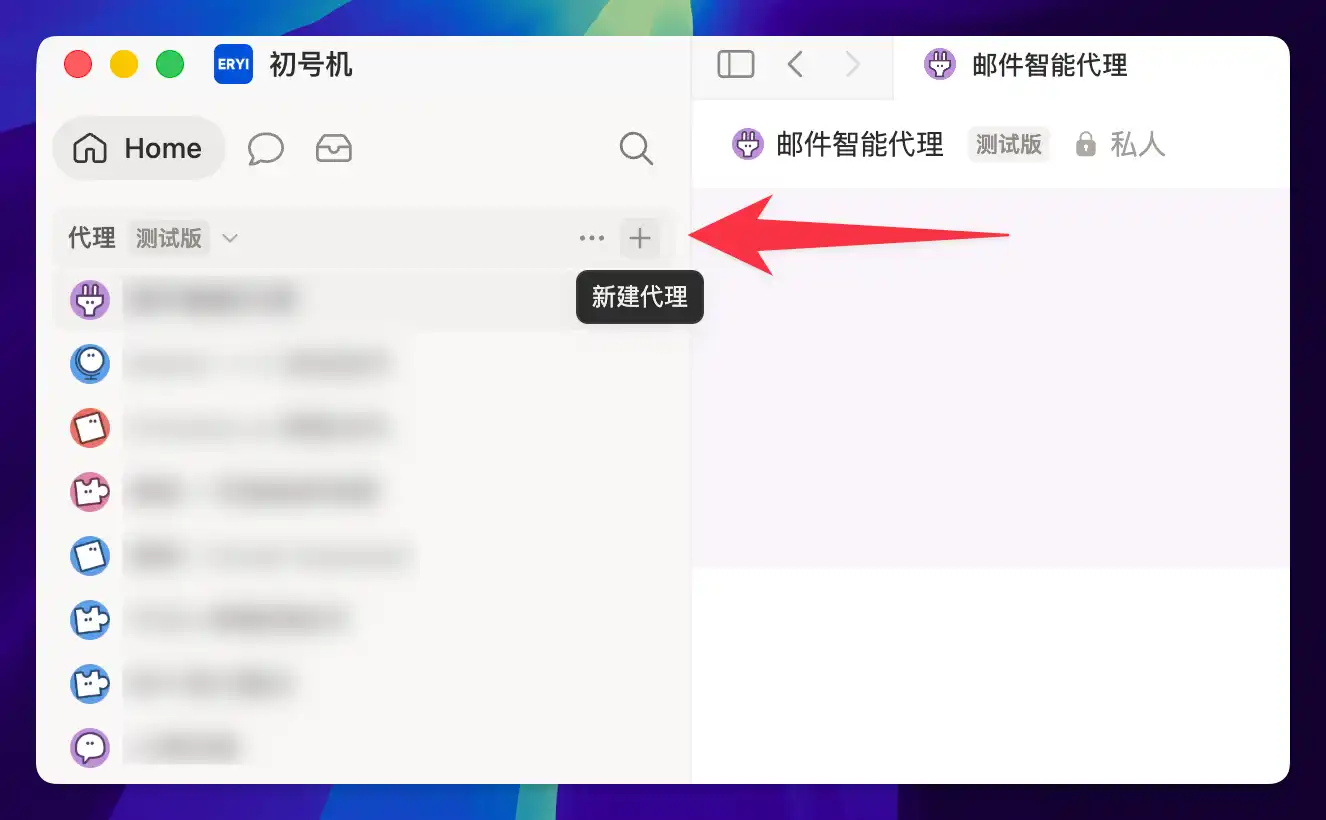
Open Notion and click the "New Agent" button in the upper-left corner to open the Agent setup panel.
A settings panel will appear with the four core configuration areas for your Agent.
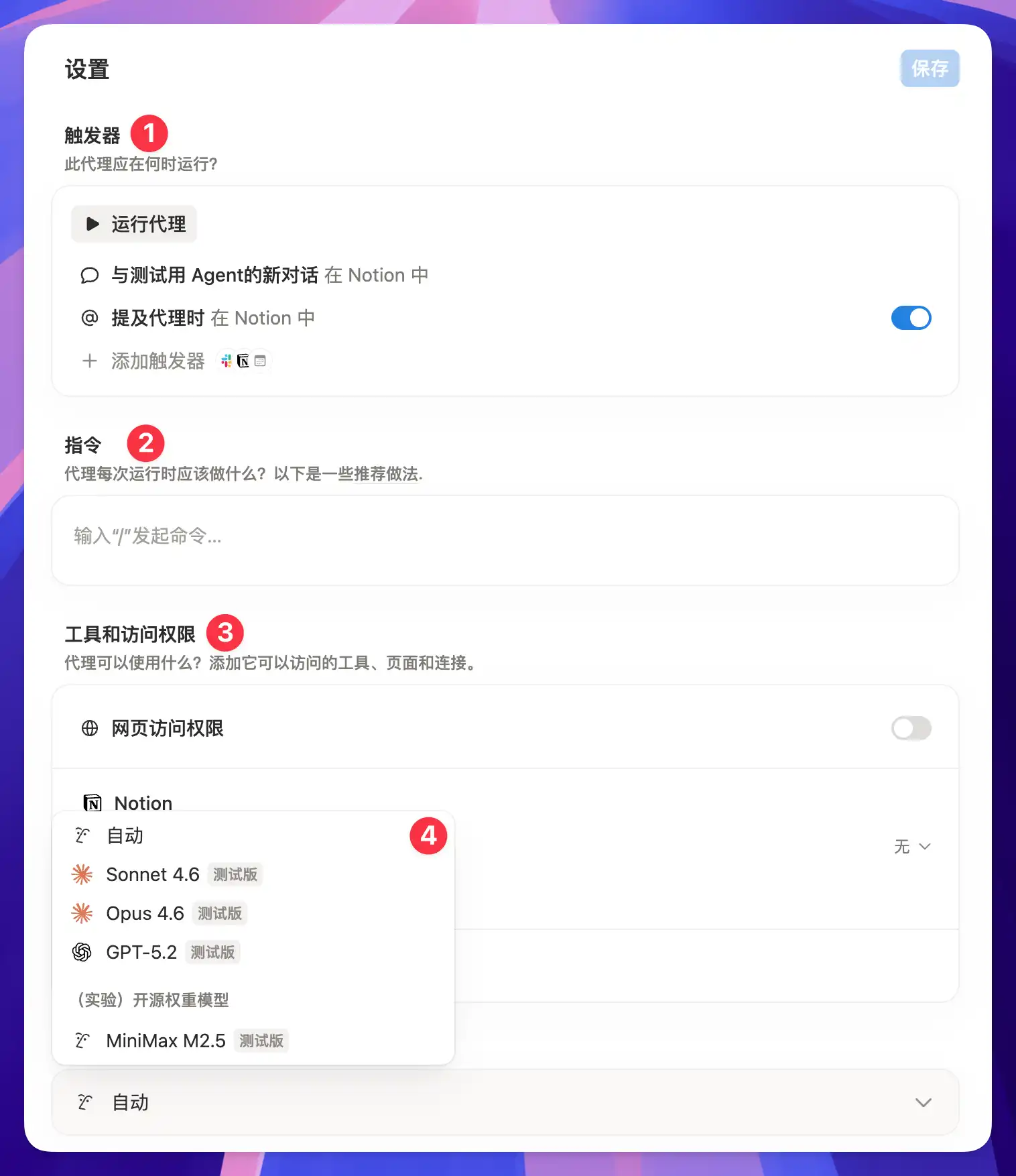
Four Core Configuration Areas
Trigger
The trigger determines when your Agent starts working — think of it as the Agent's "work schedule."
You can set an Agent to run automatically under specific conditions, such as when a new record is added to a database, when a property value changes, or on a fixed time interval.
If you skip the trigger setup, the Agent can only be run manually.
Instruction
The instruction is your Agent's "operating manual" — it defines what the Agent should do and how it should do it.
A good instruction includes: the task you want the Agent to accomplish, rules and criteria for processing data, and the expected output format. The clearer and more specific your instructions, the more consistent and reliable the Agent's behavior.
Model
The model is your Agent's "brain" — it determines how well the Agent understands context and reasons through problems.
Notion offers several models to choose from. More capable models generally handle complex tasks better, but they consume more Tokens per run, which means higher cost. For simple categorization and organization tasks, a basic model works fine. For tasks involving complex reasoning or content generation, a more powerful model is recommended.
Tools & Access
Tools and access are the Agent's "computer and key card" — they determine which resources the Agent can operate on and which capabilities it can use.
You can authorize an Agent to read and write specific databases and pages, and enable built-in tools like web search and email sending. Follow the principle of least privilege: only grant the permissions the Agent actually needs to complete its task, and avoid over-provisioning.
Beyond Notion
Custom Agent is not limited to working inside Notion. Through MCP and Workers, an Agent can connect to external services and call third-party APIs, enabling cross-platform automation workflows.
For example, you can have an Agent automatically sync content from a Notion database to another platform, or pull data from an external source and write it into Notion.
Quick Tips
Don't aim for perfection with your first instruction. Start with a simple instruction, run the Agent, observe its actual behavior, and then refine iteratively based on the results. Iterating is more efficient than trying to get everything right on the first attempt, and it makes it much easier to spot issues early.
Last updated on
Custom Agent
Complete guide to Notion Custom Agent, from creating your first Agent to instructions, debugging, knowledge base, tools, MCP integration, and advanced features.
Instruction Writing Guide
Write effective instructions for your Notion Custom Agent — basic structure, sub-page references, memory pages, and iterative optimization tips.